Gmail Application Configuration
Application Registration
Open the Google Cloud Console and log in to your Google account when prompted.
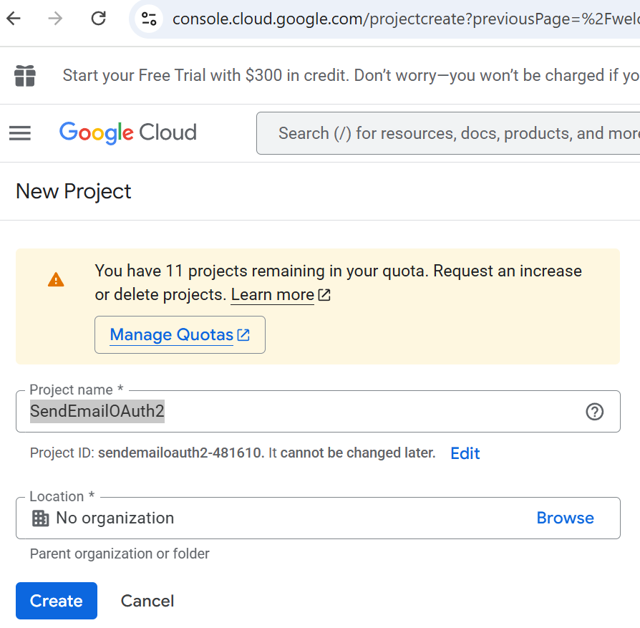
First create a new project (or select existing). Enter a project name (e.g. ‘SendEmailOAuth2’) and select the storage location. (If no organizations are defined, keep “No organization”).
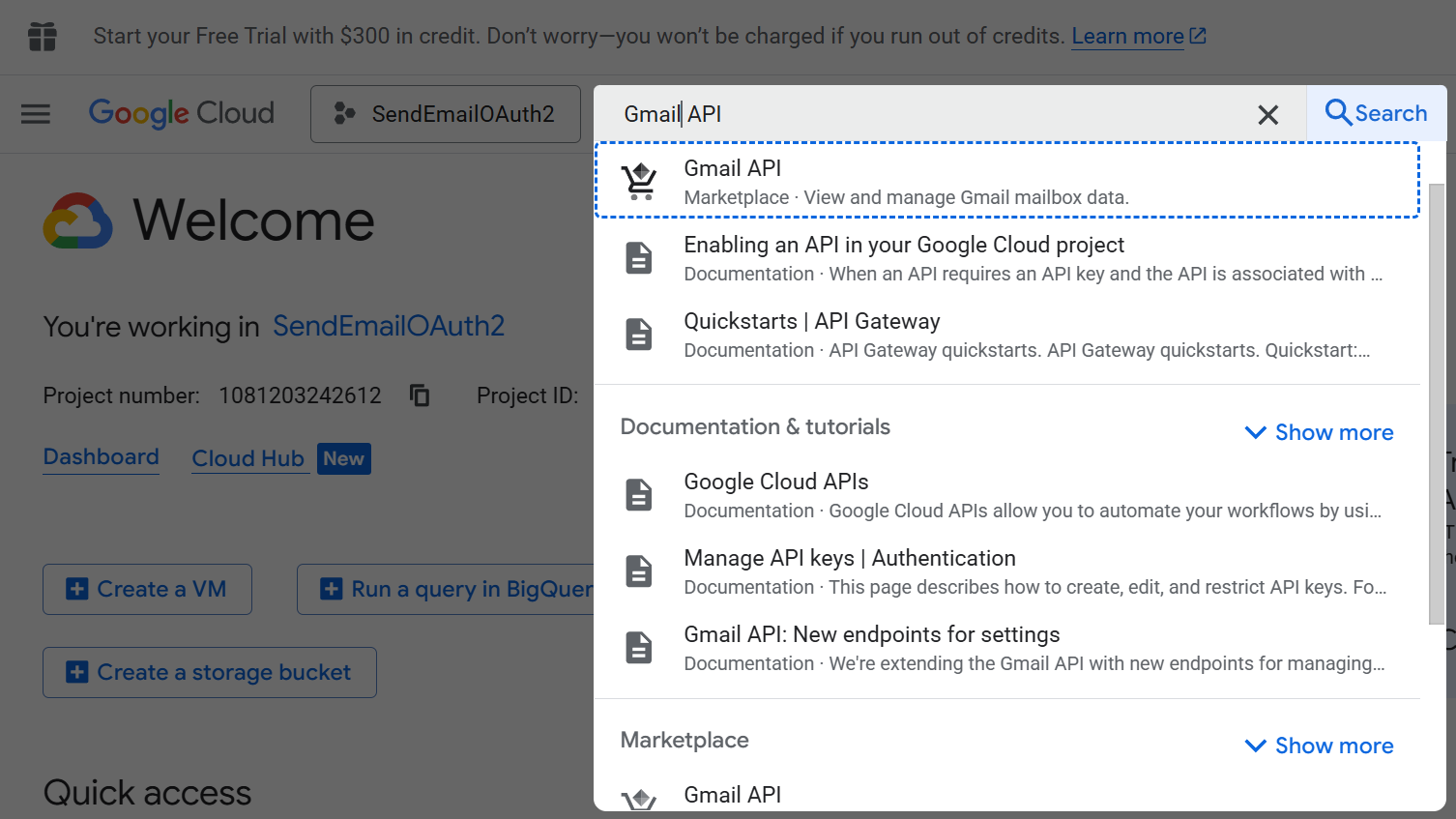
- Allow the created project to use the Gmail API. To do this, click with the mouse in the search field at the top of the screen, enter “Gmail API” and then click on the corresponding search result. Activate the Google API.
All further steps take place in the Google Auth Platform. Click on the sandwich icon in the top left-hand corner and then select “APIs & Services > OAuth consent screen” . On the Overview page, click on “Get started”.
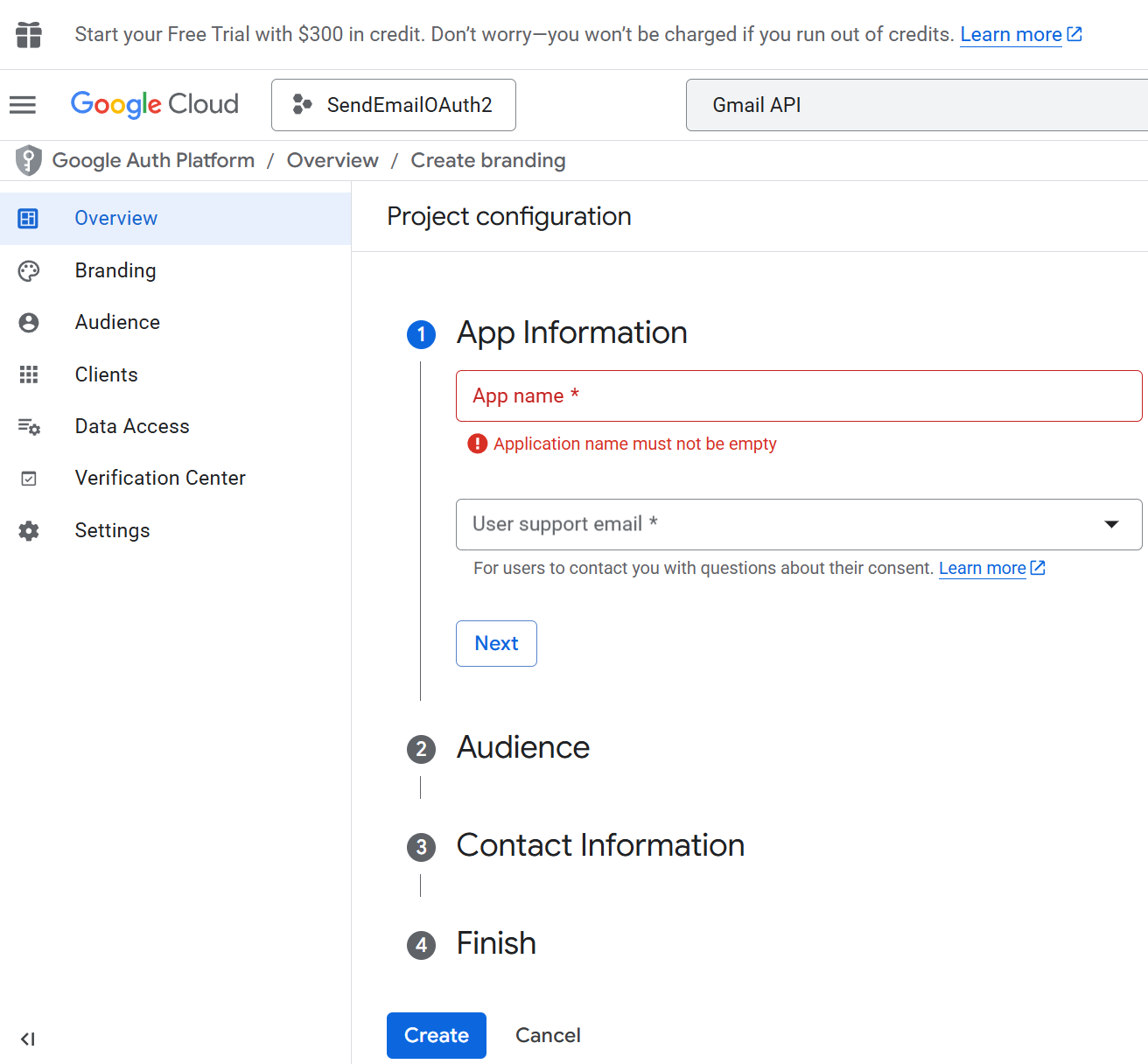
- Make the necessary configurations on the Google Auth Platform: Enter an application name, a support and a contact e-mail address (e.g. your Gmail address). Select “External” as the target group, add your contact email address. Accept the terms of use and complete the configuration.
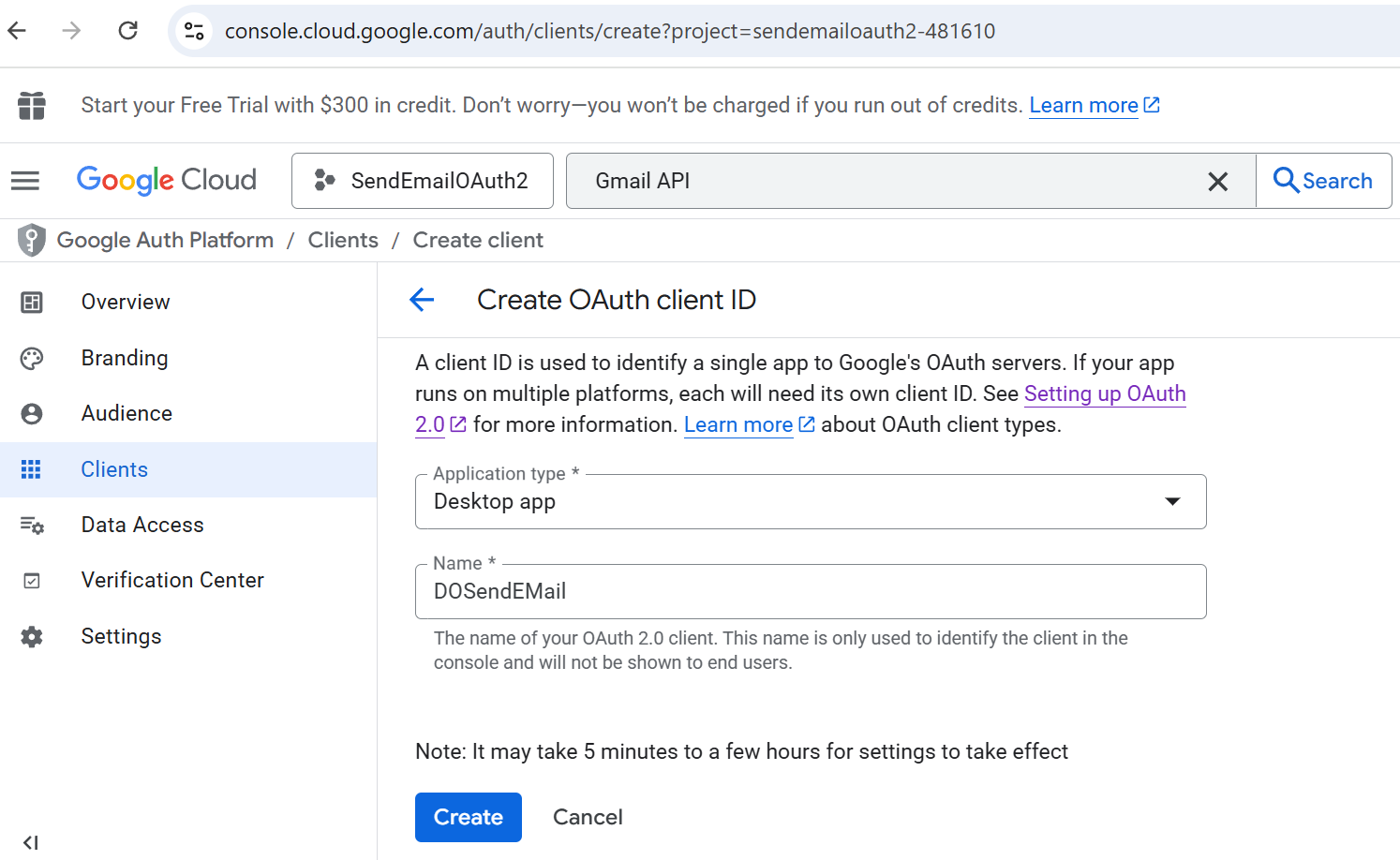
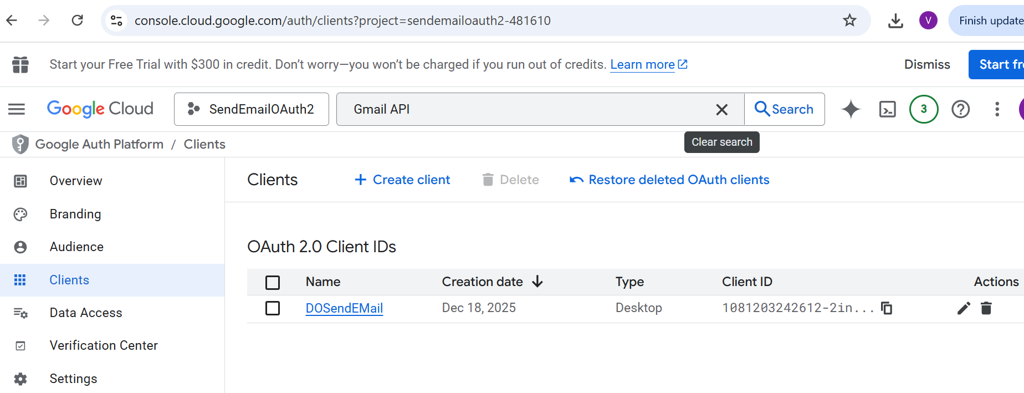
- At the left panel select menu item “Clients“ and create “Desktop app” client:
- At the bottom of “OAuth client created“ window click “Download JSON“ to save application credentials that are required for the emails sending. The newly created client is now displayed in the list of OAuth 2.0 clients. The settings of the client can be displayed by clicking on its name. The displayed client ID and the client key are essential for the following setup in DO.
In the left panel, select the Audience menu item. If the application is in the testing stage, under Test users, click Add users and enter the Gmail addresses that will be allowed to use the application for sending emails.
Obtaining OAuth 2.0 refresh token
Send a request to Google's OAuth 2.0 server to get authorization code
To obtain user authorization the desktop application should send a request to Google's authorization server at https://accounts.google.com/o/oauth2/v2/auth. This endpoint handles active session lookup, authenticates the user, and obtains user consent. Below sample shows authorization URL with a redirect URI option:
https://accounts.google.com/o/oauth2/v2/auth?client_id={client_id}&redirect_uri={redirect_uri}&response_type=code&scope=https%3A%2F%2Fmail.google.com%2F&access_type=offline&prompt=consent
Google prompts user for consent
In this step, the user decides whether to grant your desktop application the requested access. At this stage, Google displays a consent window that shows the name of your application and the Google API services that it is requesting permission to access with the user's authorization credentials and a summary of the scopes of access to be granted. The user can then consent to grant access to one or more scopes requested by your application or refuse the request.
Exchange authorization code for refresh and access tokens
To exchange an authorization code for an access token, call the https://oauth2.googleapis.com/token
The following snippet shows a sample request:
POST /token HTTP/1.1
Host: oauth2.googleapis.com
Content-Type: application/x-www-form-urlencoded

code=4/P7q7W91a-oMsCeLvIaQm6bTrgtp7&
client_id=your_client_id&
redirect_uri=http://127.0.0.1:9004&
grant_type=authorization_code
Google responds to this request by returning a JSON object that contains a short-lived access token and a long-lived refresh token:
{
    "access_token": "ya29.a0Aa7pCA_OQ0WQ3GoA5AF0Zu2_X02nv-aeFkMeeL8-3rnxv4eo3GB21Bd-phxXtMWHatoKPwXQgVkCGPg8eSP5Thh9vMcCSVMQhldYbLXScUDgusRwa0aBtoD25c9yOszjrRkivVFMeFCKmG_tRhaLfXACm4x_kENe5gq8EXo06oNTbqk9kp36IBcq7numhb0GiQb6jWkaCgYKAUwSARESFQHGX2MioAdMXfHCLVp3qCFYvdshLg0206",
    "expires_in": 3599,
    "refresh_token": "1//0cP-Dl9SlP7VCCgYIARAAGAwSNwF-L9Irv3Ymw4lvvhy49s7-WpFQC6RWNql12hdnM880m2-WfpMCeCWd4n6mrvQ24I1Eokxg8aY",
    "scope": "https://mail.google.com/",
    "token_type": "Bearer",
    "refresh_token_expires_in": 604799
}
The obtained refresh_token value should be used in a DocOriginSendMail.prm:
-oauth.refresh_token {YOUR_REFRESH_TOKEN}
Batch script
This script includes all steps described above. Before the running, please set there your own values for CLIENT_ID, CLIENT_SECRET. The received refresh token should be copied to the DocOriginSendMailServer.prm (can be obscured or with "!" if not obscured):
@echo off
:: =========================
:: Configuration
:: =========================
SET CLIENT_ID=242366366430-7rb3kks286fup8aqov770ql1k4acqpio.apps.googleusercontent.com
SET CLIENT_SECRET=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
SET REDIRECT_URI=http://localhost
SET SCOPE=https://mail.google.com/

:: =========================
:: Step 1: Open browser for consent
:: =========================
echo Opening browser for OAuth consent...
start "" "https://accounts.google.com/o/oauth2/v2/auth?client_id=%CLIENT_ID%&redirect_uri=%REDIRECT_URI%&response_type=code&scope=%SCOPE%&access_type=offline&prompt=consent"

echo.
echo After granting access, Google will redirect to a URL like:
echo http://localhost/?code=4/0AfJohX...
echo.
echo COPY the value of the "code" parameter from the URL
set /p AUTH_CODE=Enter the authorization code:

:: =========================
:: Step 2: Exchange code for tokens using curl
:: =========================
echo.
echo Exchanging authorization code for access token and refresh token...
curl -X POST https://oauth2.googleapis.com/token ^
 -d client_id=%CLIENT_ID% ^
 -d client_secret=%CLIENT_SECRET% ^
 -d code=%AUTH_CODE% ^
 -d grant_type=authorization_code ^
 -d redirect_uri=%REDIRECT_URI%

echo.
echo Done. Save the "refresh_token" from the JSON output for use in your C++ program.
pause